A tour of the app
Find your way around Duun: Home, Inbox, My work, Reviews, Fleet, Explore, projects, factories, agents and settings.
On this page
Duun is organised around one idea: agents do the work, and you step in when it matters. This tour covers each part of the sidebar and the few keyboard shortcuts worth learning first.
Home
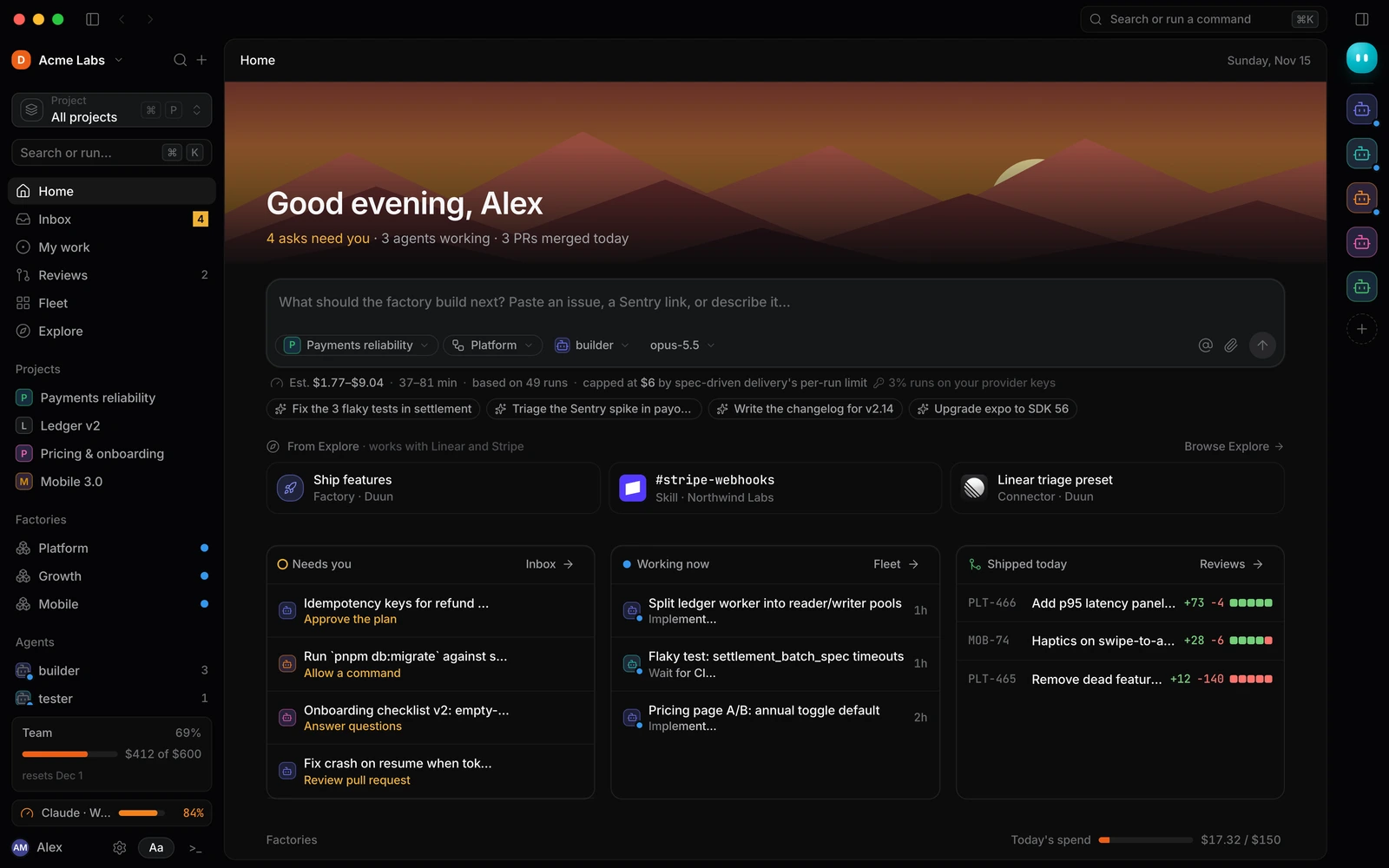
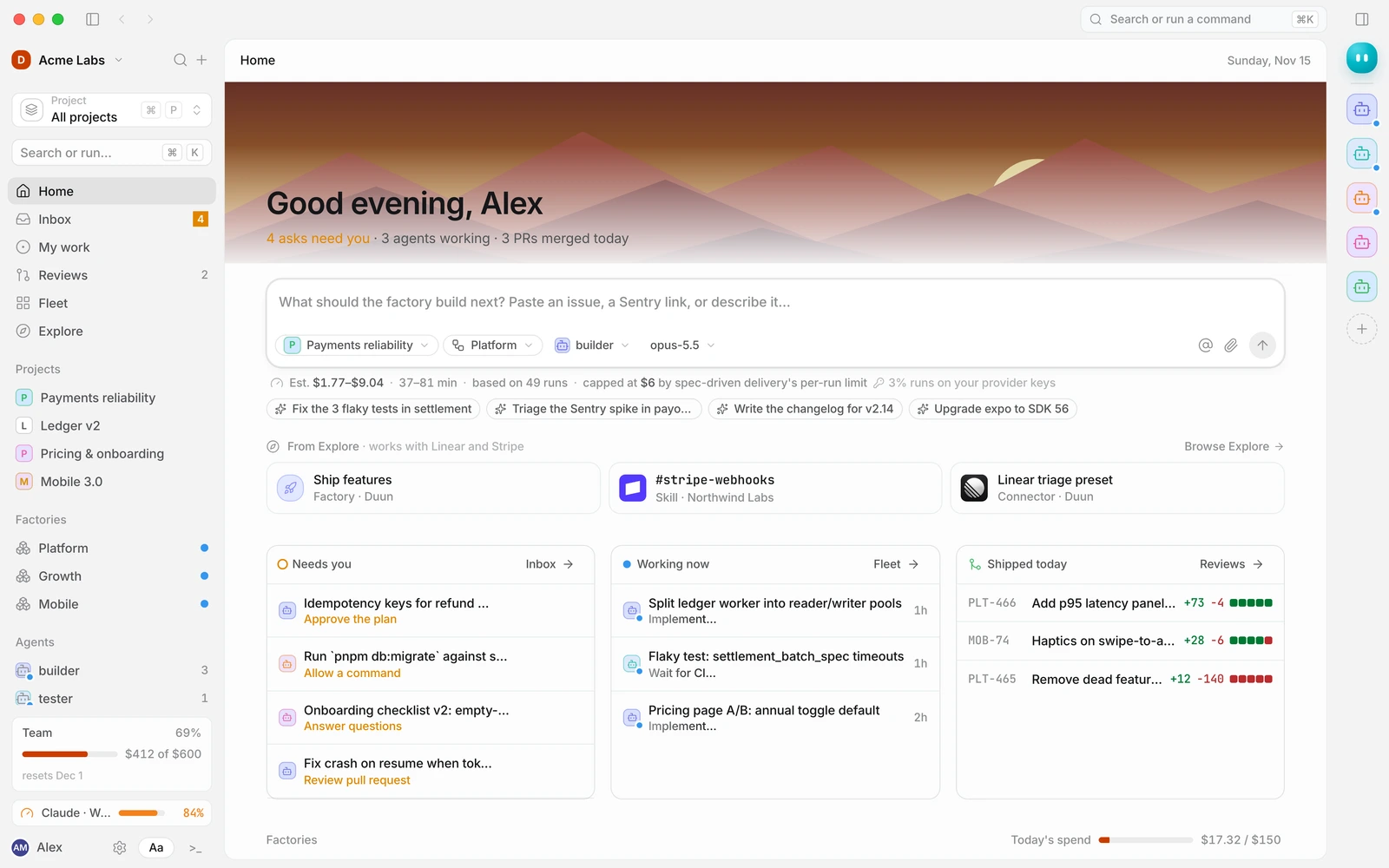
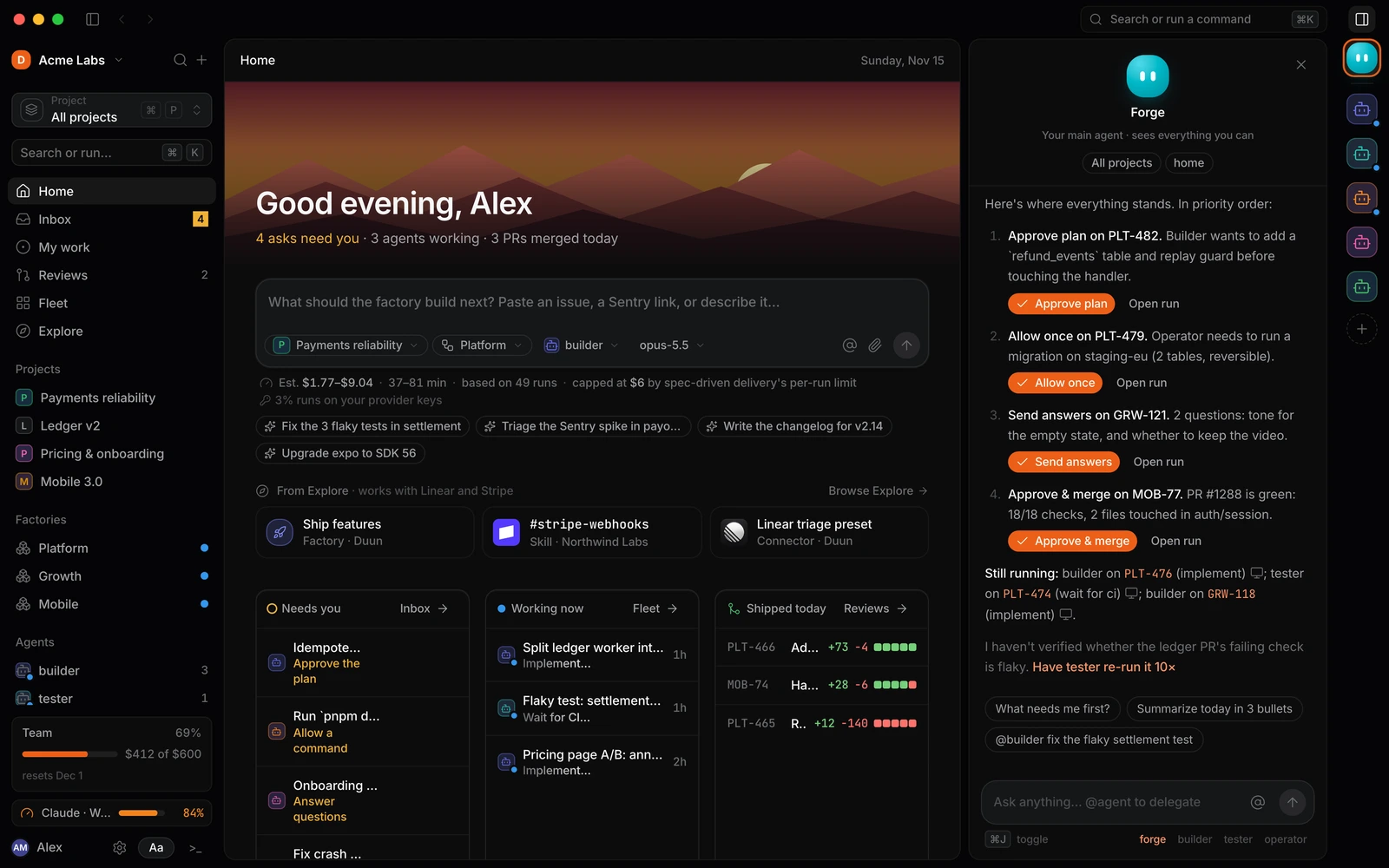
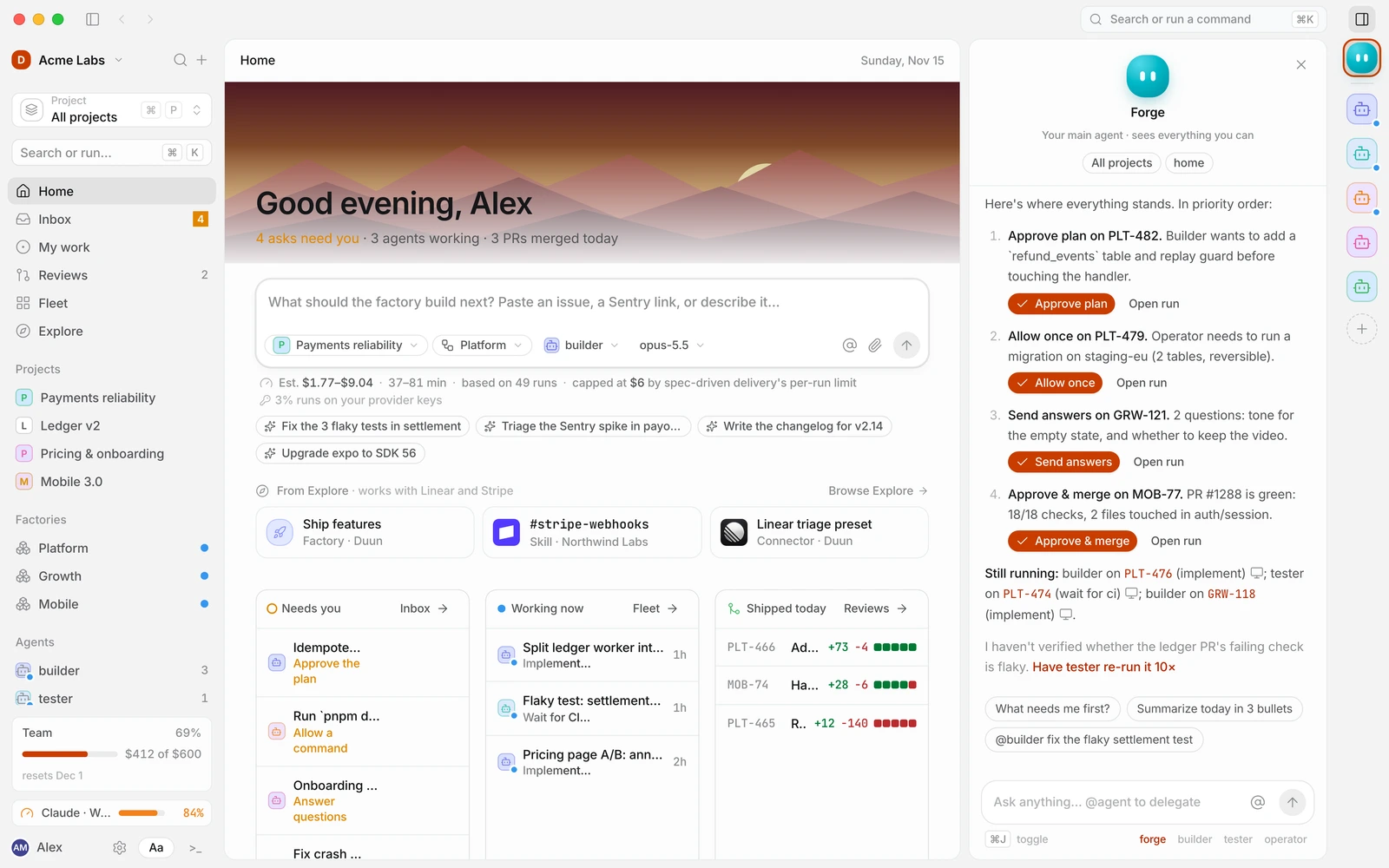
Home is your overview: what’s running, what finished, today’s spend and recent activity across your projects. Each project can have its own cover image.
Inbox
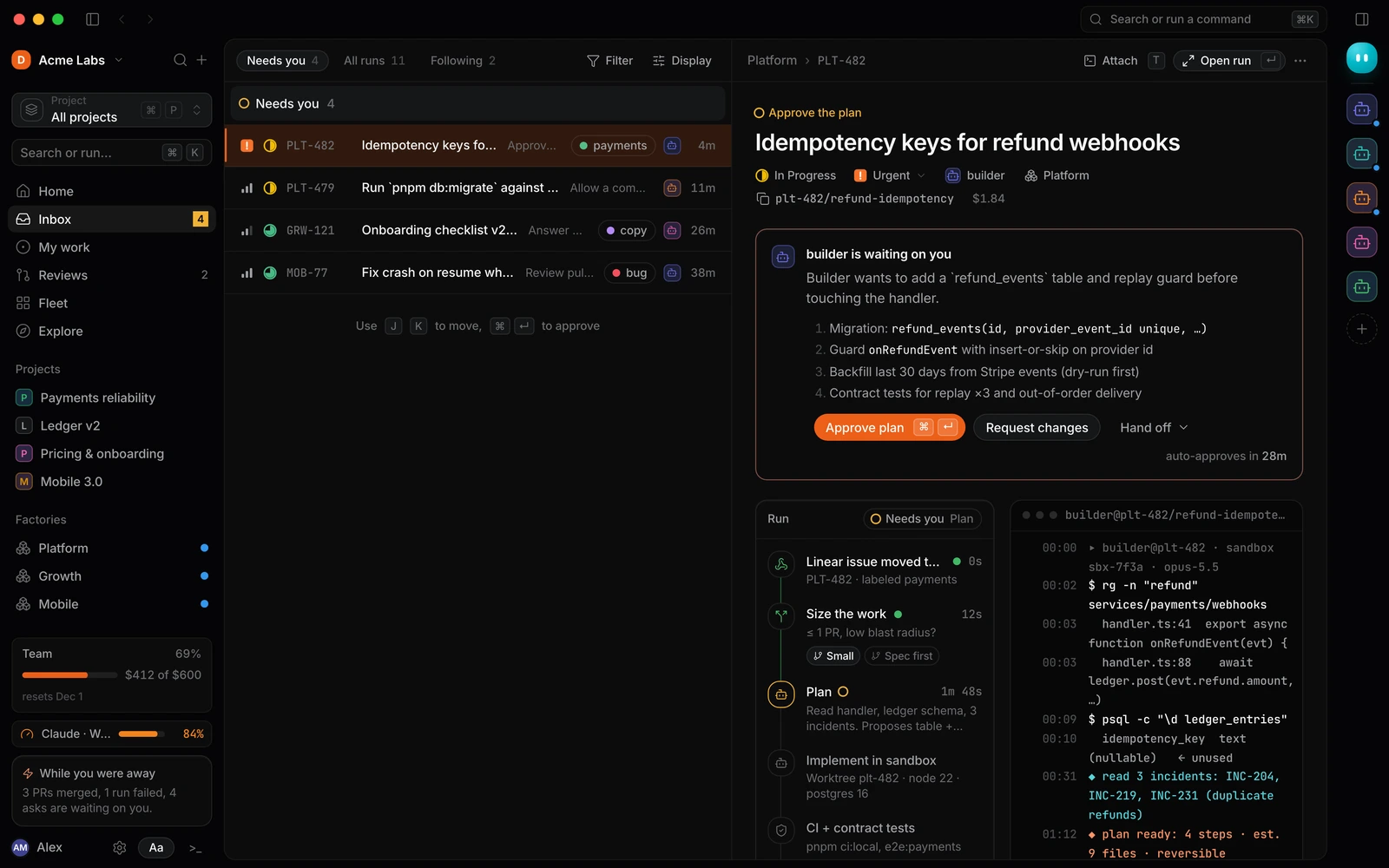
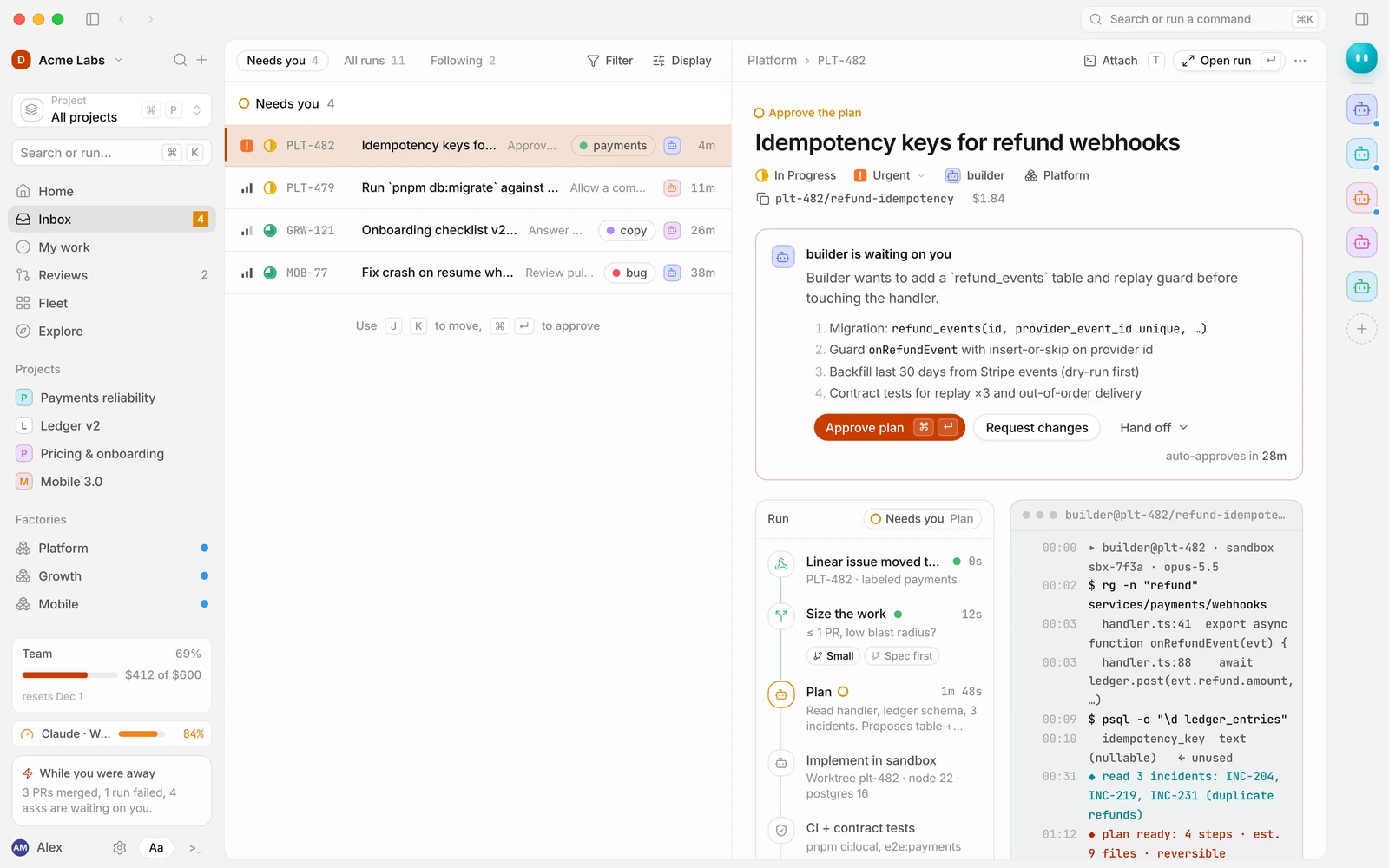
The Inbox holds everything waiting on you: plans to approve, commands to allow, questions to answer and pull requests to review. The number next to Inbox in the sidebar is how many asks you have. Work through them with J and K, and approve with ⌘ ↵.
A run
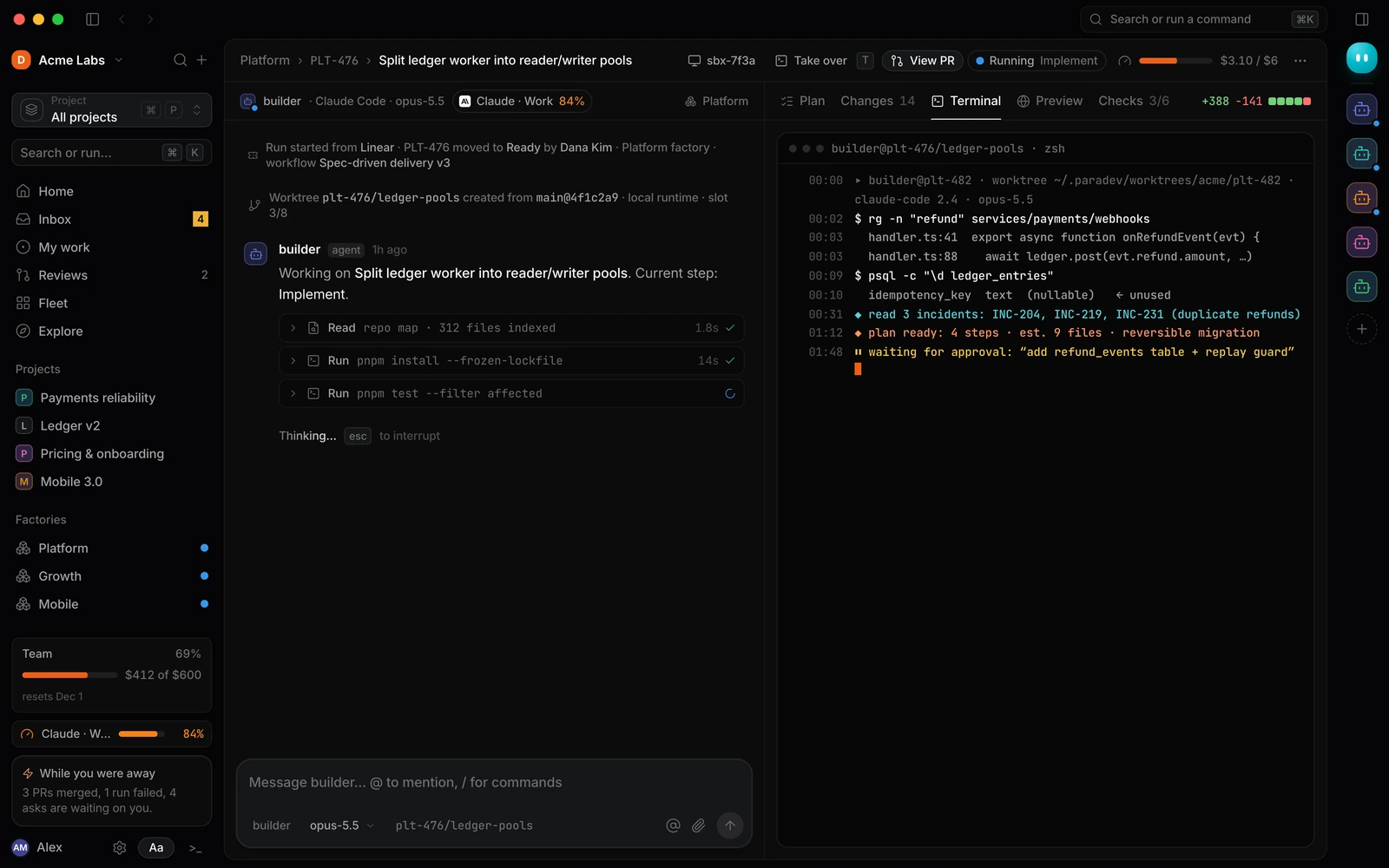
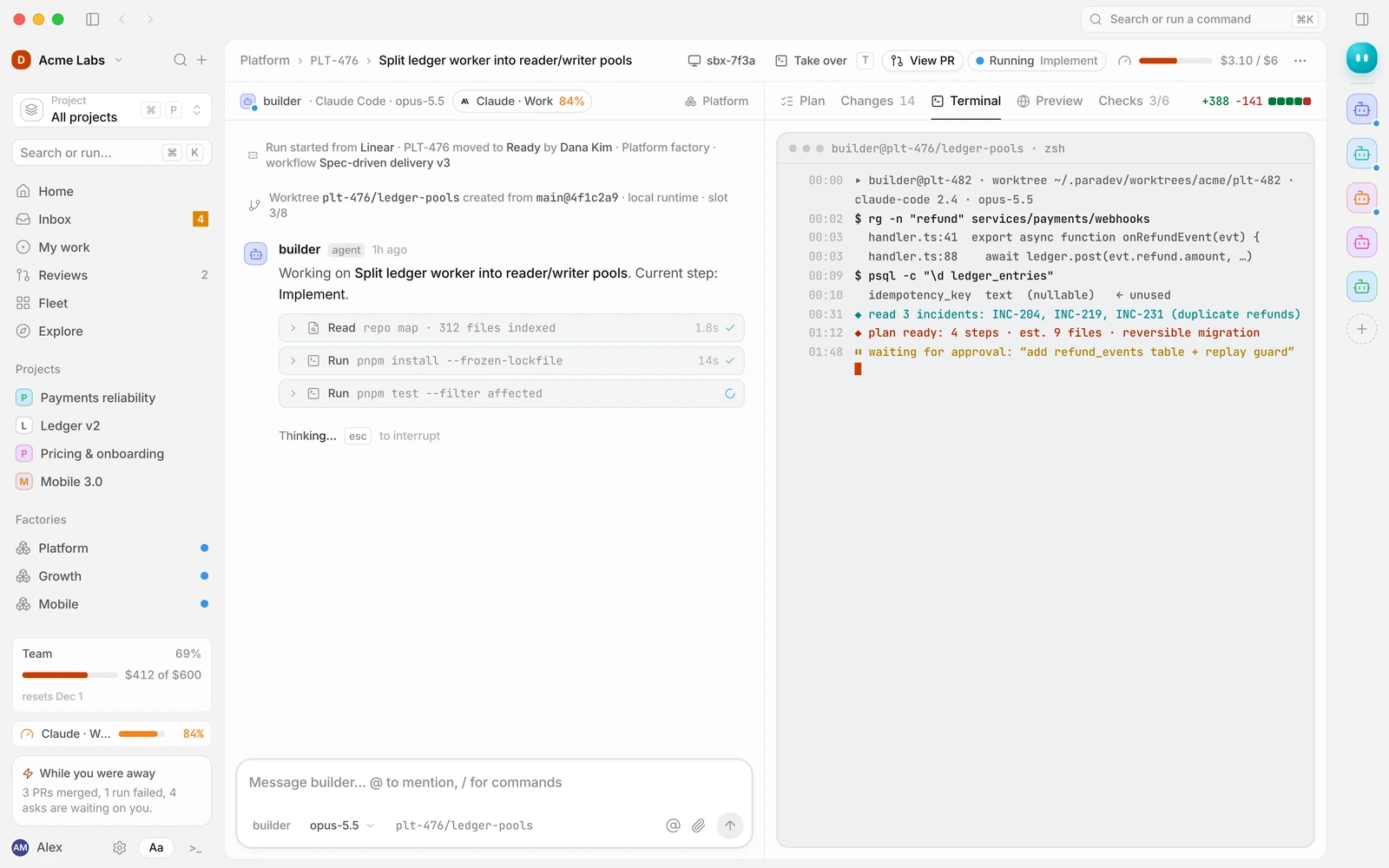
Open any run to see the conversation with its agent, plus the Plan, Changes, Terminal, Preview and Checks tabs. The run follows the workflow version it started on, shown step by step.
My work and Reviews
My work lists issues and runs assigned to you. Reviews lists pull requests waiting for your review, including ones agents opened.
Fleet
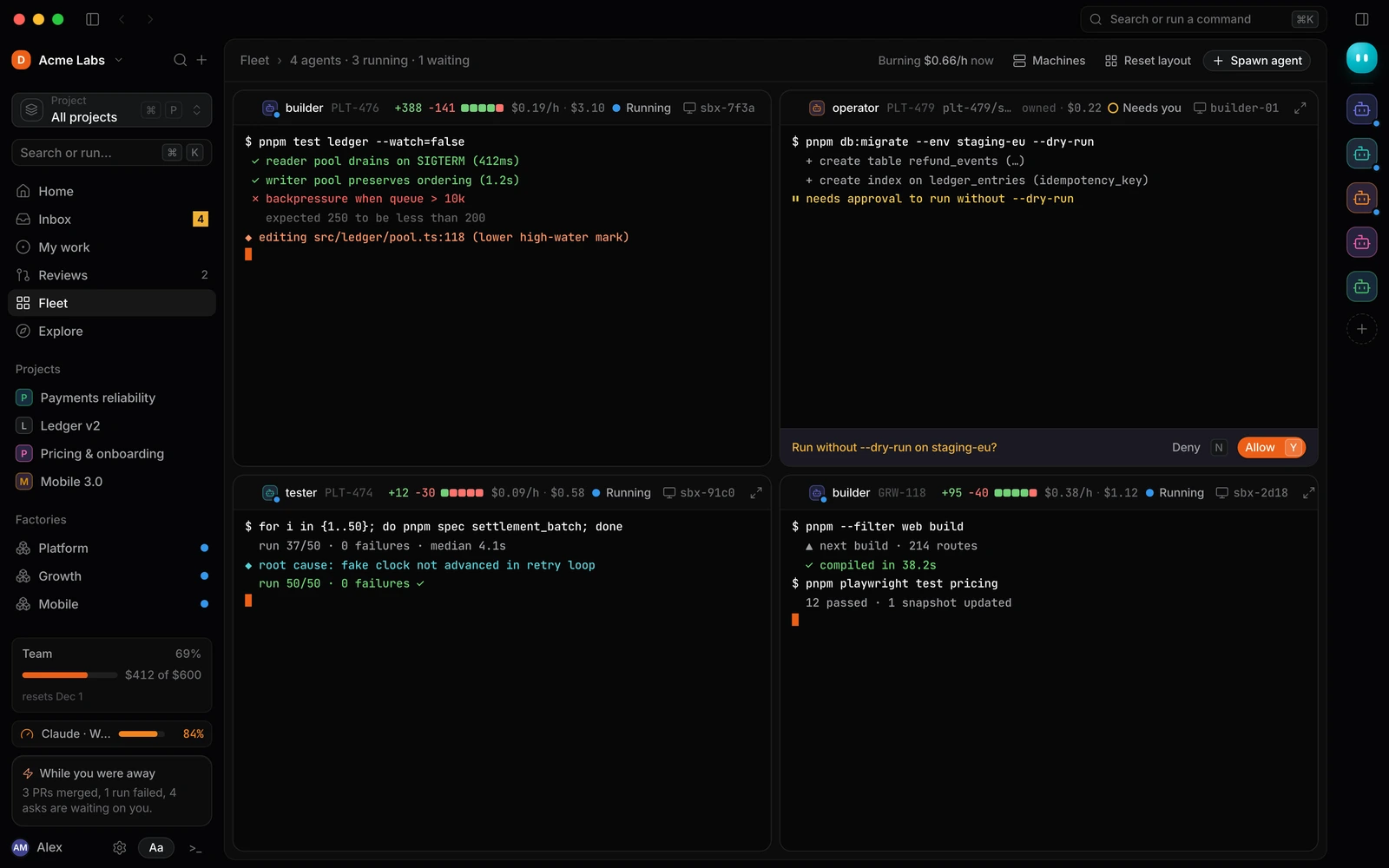
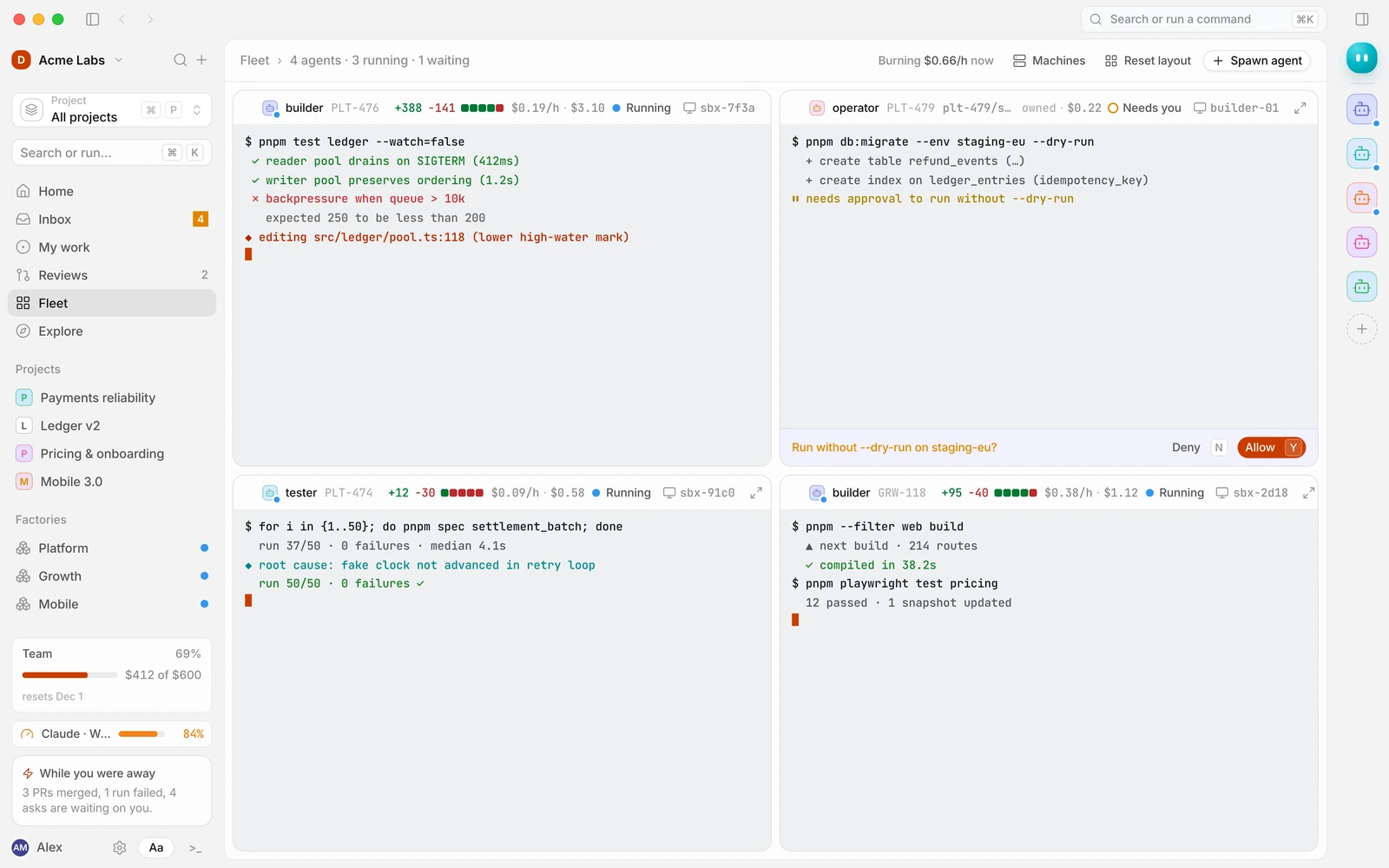
Fleet shows every live agent terminal side by side. Use it to watch several runs at once or to take over a terminal yourself. Drag panes to rearrange them.
Explore
Explore is where you find factory templates, workflows, agents, skills, commands and connectors made by Duun and other teams. See Install something from Explore.
Projects
Each project in the sidebar has an Overview, Artifacts (screenshots, reports and other files runs produce) and Context (docs and links every run in the project starts with).
Factories
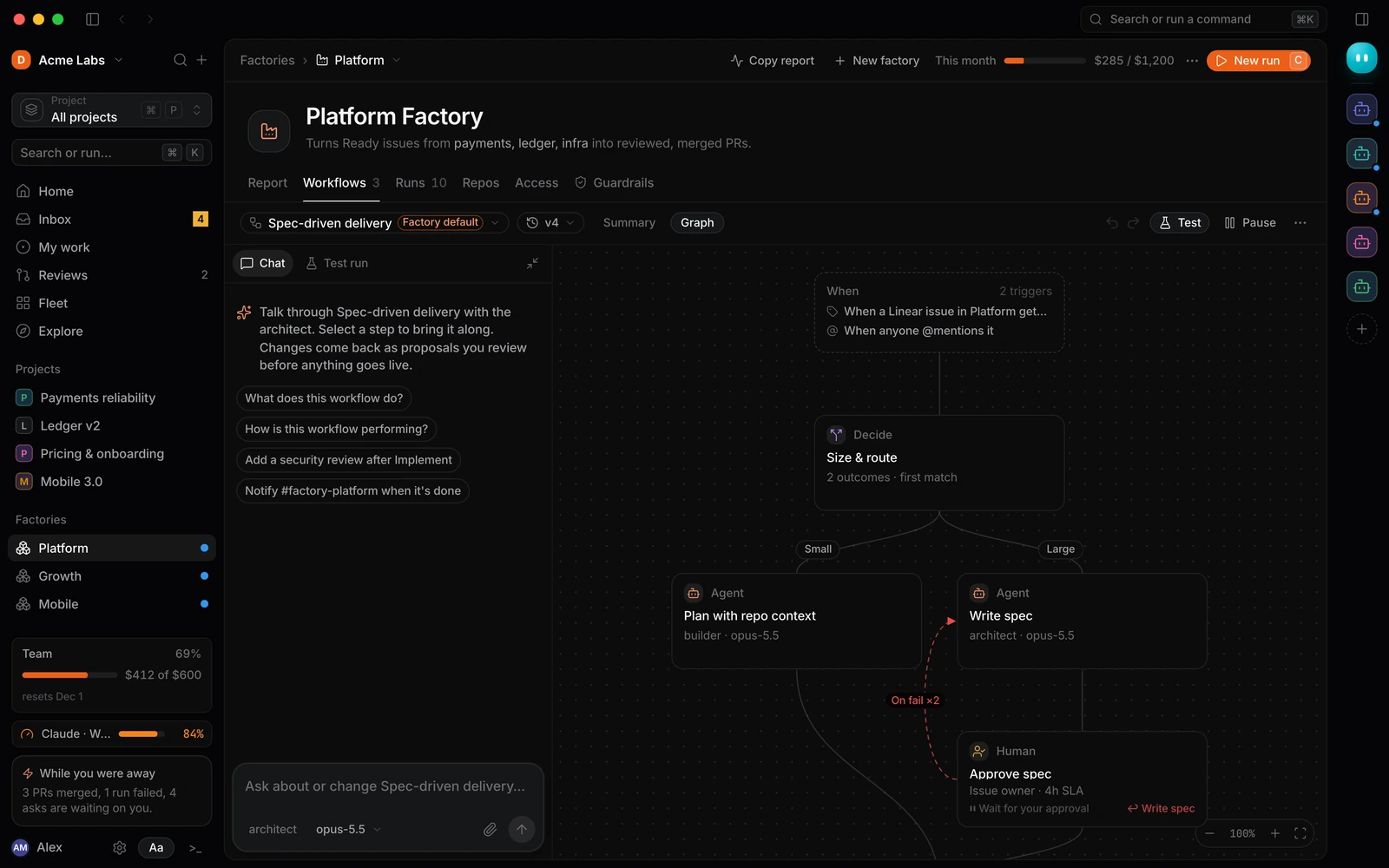
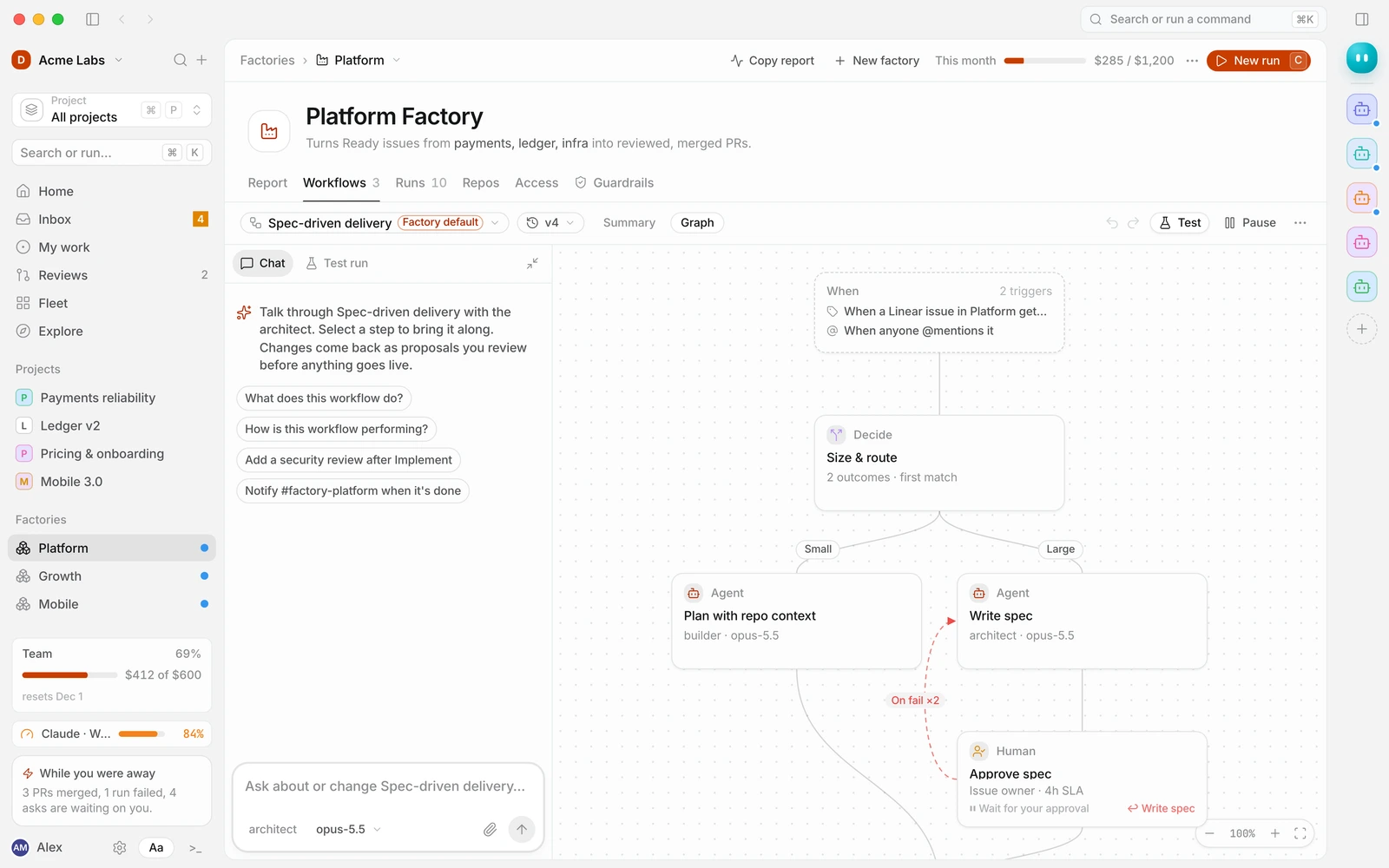
A factory is a team’s pipeline: the workflows it runs, the repos it opens pull requests in and its guardrails. Open a factory to see its Report, Workflows, Runs, Repos, Access and Guardrails tabs.
Agents
The Agents page lists every agent in the workspace with its runtime, model, success rate and cost. Select one to edit its instructions, skills and permissions. Press ⌘ J to open the agent panel and chat with an agent from anywhere.
Settings
Settings is split into Account (your profile, appearance, notifications, keyboard), Agents (guidance, approvals, models, skills, runtimes) and Workspace (members, integrations, webhooks, secrets, computers, billing, storage).
Keyboard basics
| Shortcut | Does |
|---|---|
| ⌘ K | Command palette |
| C | New run |
| G then I | Go to Inbox (H Home, M My work, R Reviews, T Fleet, A Agents, S Settings, E Explore) |
| ⌘ / | Switch between Studio and Terminal looks |
| [ | Show or hide the sidebar |
| Esc | Go back |
You can change any shortcut in Settings → Keyboard. See Appearance and keyboard shortcuts, or read How Duun works for the concepts behind each screen.