Versions and rollback
How workflow edits become versions: drafts, agent proposals from the chat pane, Review changes, applying, conflicts, restoring an earlier version and runs that keep theirs.
On this page
Workflows change safely. Your edits collect in a draft that only you and other editors see. When you’re ready, Review changes shows every difference from the live version, and Apply changes makes a new numbered version. New runs use it; runs in progress keep the version they started on. Any earlier version can be restored in one step.
Drafts
Every edit you make in the Workflows tab, in the graph, the Summary view or the inspector, goes into the workflow’s draft. The draft:
- survives navigation and reloads, so you can leave and come back
- shows as Unapplied draft (a dot) in the workflow picker
- is validated as you type; problems are listed with Fix these before applying
- has undo and redo: ⌘ Z and ⇧ ⌘ Z, or the toolbar buttons (keystrokes in one field are grouped into one step)
While there are changes, the toolbar shows Changed: Implement, CI checks and 2 more, the number of problems, Discard and Review changes. Discard throws the draft away (“Discarded changes · ⌘Z to undo”).
Editing with the chat pane
The chat pane on the left of the editor talks to an agent that knows this workflow. Ask questions (“What does this workflow do?”, “How is this workflow performing?”) or describe changes (“Add a security review after Implement”, “Notify #factory-platform when it’s done”). Select a step first to attach it to your message.
For a change, the agent replies with a proposal card: a summary of what it would change and a short list of the steps it adds, edits or removes. “Here’s the change. Review it, or put it in your draft; nothing goes live until you apply.”
| Button | What it does |
|---|---|
| Review | Opens the review dialog comparing the proposal with your draft (“Compared with your current draft.”) |
| Apply to draft | Puts the proposal into your draft. “Applies to your draft only. Nothing goes live until you review and apply.” |
| Dismiss | Discards the proposal |
A proposal never goes live by itself. If the agent edits a step you’re also editing, your edit is kept.
Review changes
Review changes opens a dialog listing every difference between your draft and the live version:
- one card per changed step, marked Added, Removed or Edited, with Open step
- a Before and After row per changed field (instructions show a line diff)
- Revert per field, and Revert step or Restore step per card
- changes to triggers, limits, rules, run inputs, the name and the description
- any problems, inline. Problems block applying: “Fix the problems before applying”
The footer reads “Runs keep using v5 until you apply.” and offers Discard, Save as new workflow… (keep the live workflow as it is and create a separate one from your draft) and Apply changes.
Applying
Apply changes creates the next version and makes it live. The toast reads “Applied v6 · new runs use it. Runs in progress keep v5.” Each version records:
| Field | Example |
|---|---|
| Revision | 6 |
| Author | “You”, or “Agent, applied by Dana Kim” when the change came from a chat proposal |
| Label | An optional note, such as “Add security review” |
| Restored from | Set when the version is a restore |
| Created | Date and time |
Runs keep their version
A run is bound to the version it started on, from its first step to its last. The run’s Plan tab shows the workflow and version (“This run keeps the version it started on”), with each step’s state: done, active, waiting, skipped (“not this route”) or failed, plus attempt N for retries.
To move an in-progress run onto a new version, cancel it and start a new run, or let it finish.
Conflicts
Two people can edit the same workflow. If someone applies a version while you’re editing, your draft is now based on an older version. When you apply, Duun shows “Someone applied v7 while you were editing” and lets you choose, step by step, whether to keep your change or theirs, then Update to v7 and apply on top of it. Steps only one of you touched merge without asking.
Version history and restore
Open Version N ▾ in the toolbar to see the history, newest first, with each version’s author and date.
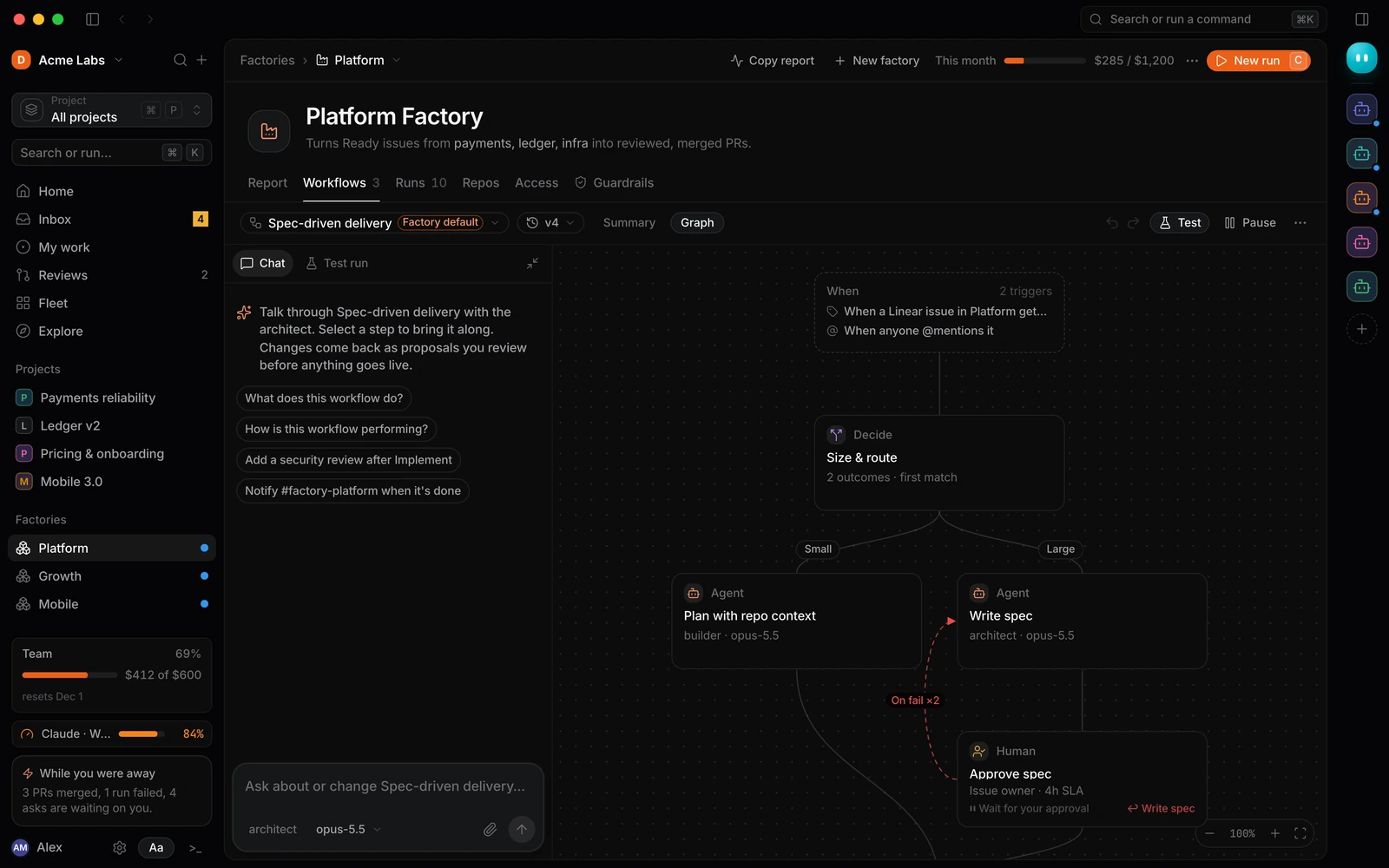
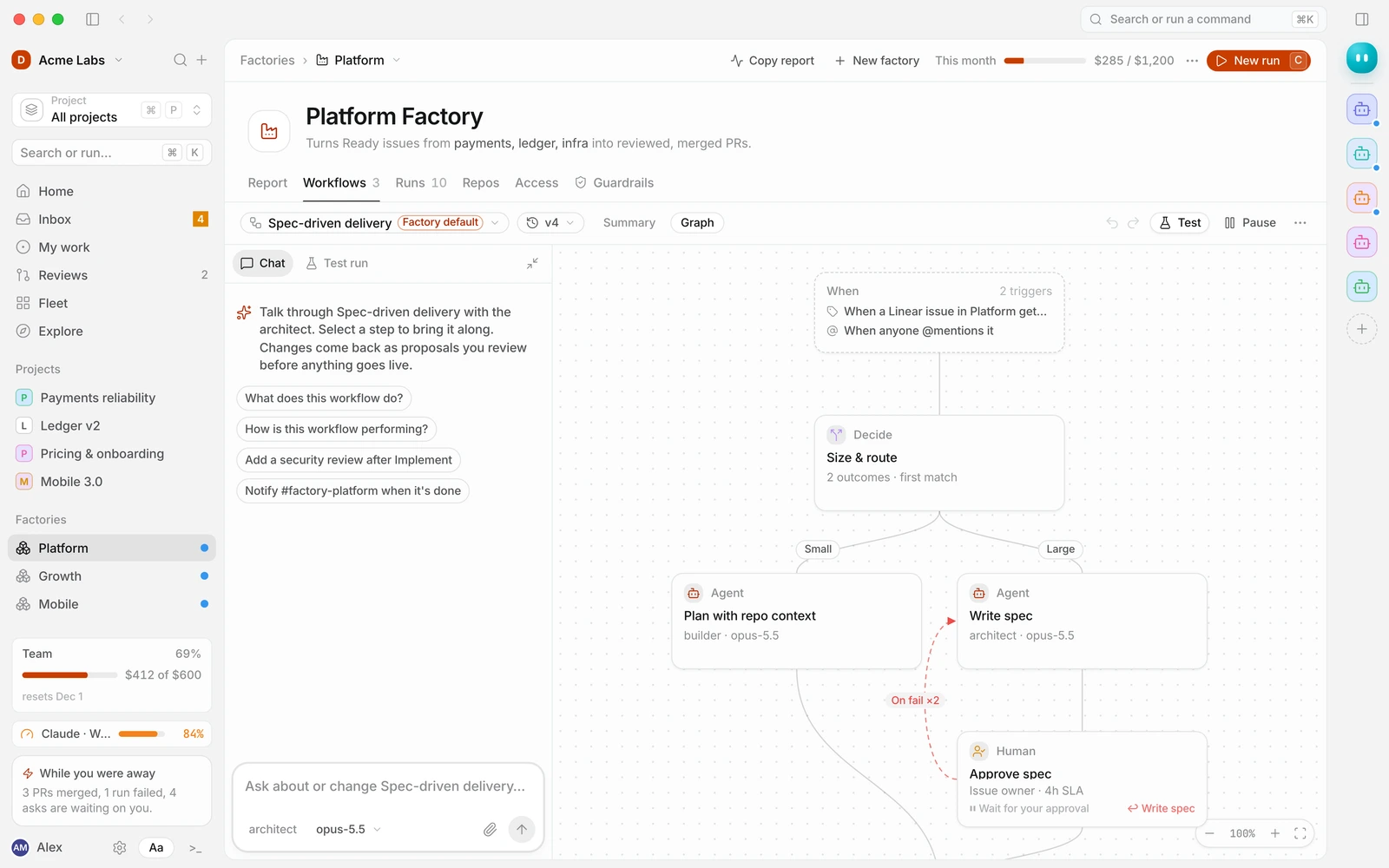
Selecting a past version shows it read-only: “Viewing a past version. Switch back to the current version to make changes.” Turn on Show changes to overlay the differences from the current version on the graph: steps marked New, Edited, Removed or Only in this version, and notes such as “Instructions differ from current”. Back to current returns to the live version.
To roll back, choose Restore while viewing a past version and confirm Restore this version?: “This re-applies version 3 as the newest one. Earlier versions stay in the history.” Restoring creates a new version (for example v7, restored from v3), so nothing is lost and you can restore forward again.
Built-in workflows
Base Loop, Small change and Large change are built in and read-only: “Built-in workflows can’t be changed. Copy one into a factory to edit it.” Copy to this factory creates a workflow with its own version history, starting at v1.
From the API and CLI
Versions are available in the Preview API and CLI, so you can keep workflows in version control and apply them from CI.
| Task | API | CLI |
|---|---|---|
| Download the live config | GET /v1/workflows/{workflow_id} | duun workflows pull <workflow> -o workflow.yaml |
| See what would change | POST /v1/workflows/{workflow_id}/diff | duun workflows diff workflow.yaml |
| Apply a new version | POST /v1/workflows/{workflow_id}/versions with expected_revision | duun workflows apply workflow.yaml --message "…" |
| List versions | GET /v1/workflows/{workflow_id}/versions | — |
| Restore | POST /v1/workflows/{workflow_id}/restore | — |
Applying through the API uses optimistic concurrency: send the revision you based your change on as expected_revision. If someone applied a newer version in the meantime, you get 409 conflict; pull, merge and try again. Problems come back as 422 validation_error with the same messages the editor shows.
{
  "error": {
    "type": "conflict",
    "code": "revision_mismatch",
    "message": "Workflow wf_9c1d is at revision 7; you sent expected_revision 6.",
    "request_id": "req_8Kq2Lm"
  }
}
See Workflows API and the CLI reference.